
Q Dictionary Help
Everything you need to get the most out of Q Dictionary
Translation
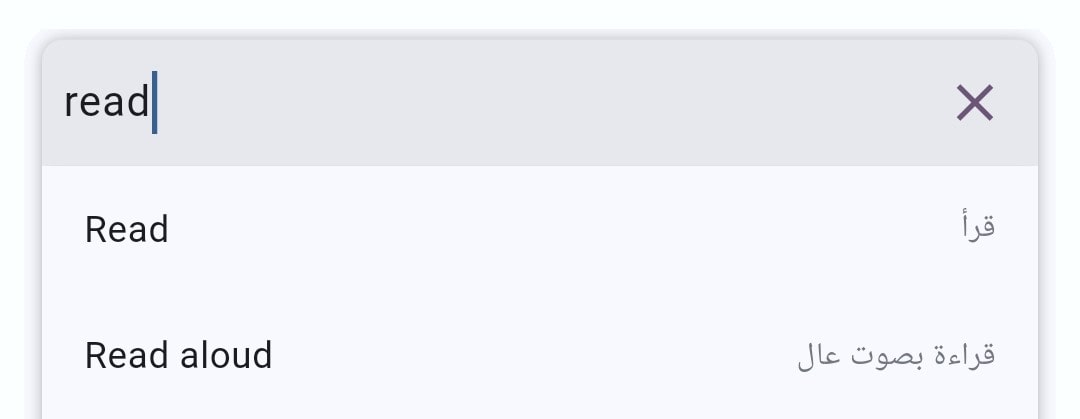
Type a word in the search box, then pick one of the suggestions from the drop-down. Q Dictionary detects the language and generates suggestions based on it.
Translation from Other Apps
- Share text from any other app and choose Q Dictionary.

- Or select text in any other app and choose Q Dictionary from the popup menu.

Translation Using Voice
Tap the  icon and say the word out loud to get the translation instantly.
Translation Using Camera
- Tap the
 icon to open the camera stream.
 - Focus on the text you want to translate, such as a sign or a book.
- Tap the
 icon to capture the image. Q Dictionary draws rectangles around the detected words.
 - Tap any word inside a rectangle to get its translation.
Tap an empty area to hide the translation box.
Camera translation works with English text only.
Favorites
Add a translation to favorites
Tap the  icon to add or remove a translation to/from your favorites.
Sort favorites
- Tap the
 icon at the top right and select Sort.
 - Select the sort type: Alphabet or Date.
- Select the sort direction: Ascending or Descending.
- Tap Apply.
Delete an item
Swipe the item to the left to delete it.
Delete all items
- Tap the icon at the top right and select Clear All.
- Tap Yes in the confirmation dialog.
History
Sort history
- Tap the icon at the top right and select Sort.
- Select the sort type: Alphabet or Date.
- Select the sort direction: Ascending or Descending.
- Tap Apply.
Delete an item
Swipe the item to the left to delete it.
Delete all items
- Tap the icon at the top right and select Clear All.
- Tap Yes in the confirmation dialog.